

When creating SAP batch jobs to run a program, most of the scheduling can be accomplished by setting a periodic time for when the job is executed. For example, execute the job every 10min, 30min, or 1 hour. But what if you needed more control of when a batch job was executed?
At one of my clients they had a requirement to run a batch job every 5 minutes. Sometimes the batch job would take longer than 5 minutes to complete. Thus, the same program would start in a new batch job before the previous batch job had time to finish. The same program would collide with itself and cause issues.
It seems that SAP’s built-in job scheduler does not have a standard way of preventing overlapping job executions. I was hoping to find a checkbox that would deny an execution of a job if it finds the same active job running, but that would be too easy. However, SAP does have some different options in its toolbelt to satisfy this requirement. The approach that I will demonstrate will use an event-driven approach to execute a SAP batch job.
First I will detail the High level overview of what needs to happen. Then, after you understand the big picture, then I will go into more detail about how to code and configure this scenario.
High level Overview
Basically 2 SAP batch jobs are needed:
1) SAP Job #1
- This job will execute every 5min or so depending on your requirment and execute a simple custom program that will check the status of Job #2.
- If the status of job Job #2 is not running, then the custom program will raise an event
- If the status of Job #2 is running, then the custom program will do nothing
2) SAP Job #2
- This job is setup to start only when an event is raised
- If an event is Raised from Job #1 then Job #2 will start. Job #2 will contain the actual programs that you need to execute.
Sound easy enough?
Step-By-Step Instructions
Now let’s get to business and see what configuration and coding we need to do.
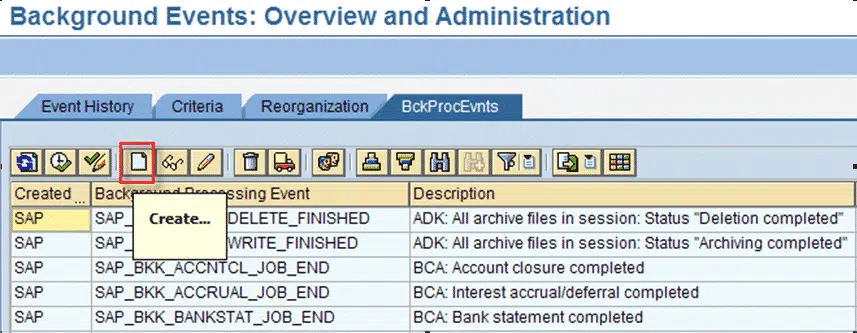
1) First let’s define an Event.
Transaction SM64 – I defined my event as Z_JOB_START_XXXXX

2) Next, Create simple Custom program ZJOB_CREATE_EVENT to Raise the Event. This program will basically check if the specified job is currently running. If it is not running then Raise an event which was created in the previous step above. In my case, I will raise event ‘Z_JOB_START_XXXXX’. Create a variant here with the Event Name(Z_JOB_START_XXXXX) and the Job #2 name (ZJOB_XXXXX).
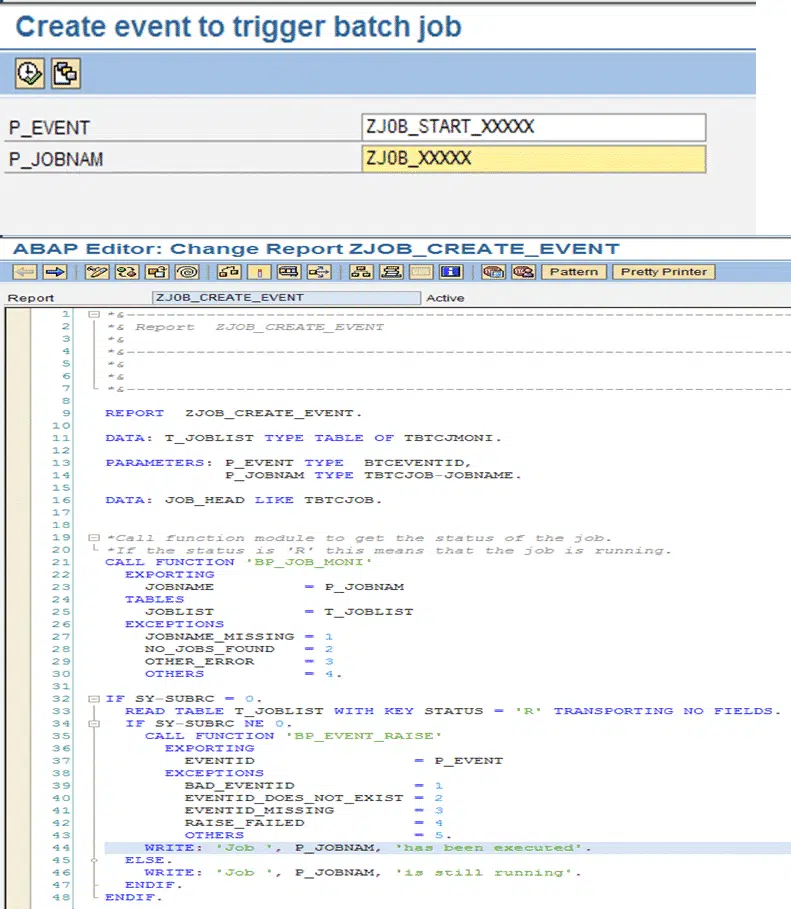
3) For Job #1. Basically set this job as Periodic Time driven job to run every 5 minutes or so with the custom program ZJOB_CREATE_EVENT. Also make sure you include the variant with the Job #2 name and Event.

4) For Job #2. Define this job as an Event Driven batch job and define the actual program (I used test program ZSPTEST) that needs to be executed. Specify the event Z_JOB_START_XXXXX that this job will be waiting for. Also checkbox ‘Periodic job’ to schedule another event job.

That’s it…Now the batch job will only execute if the same batch job is not running.
Testing
For testing purposes, I will demonstrate by manually execute program ZJOB_CREATE_EVENT to show that how this all works.
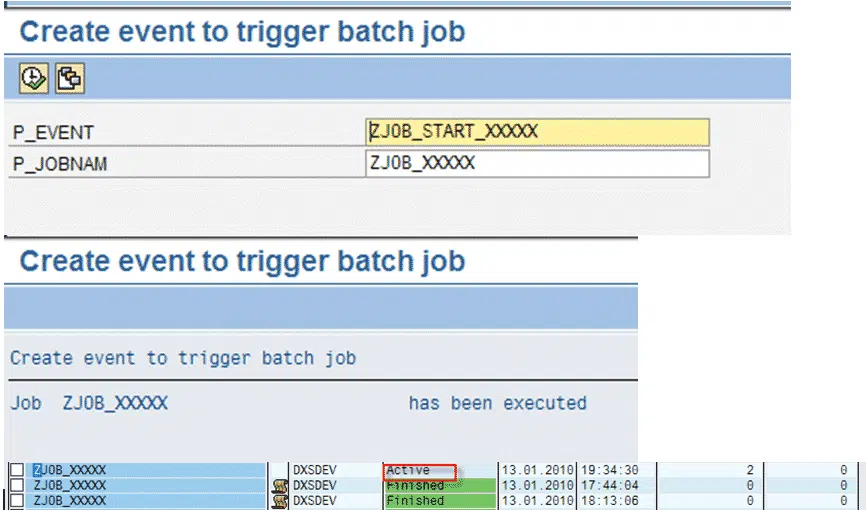
The event ZJOB_START_XXXXX has been raised by program ZJOB_CREATE_EVENT. Now you can see the ZJOB_XXXXX is Active/Running

During the time the job is active, I attempted to execute program ZJOB_CREATE_EVENT again. This time, the program knows that the job is still active and, therefore, it does not raise the event. The only time the event will be raised again is once the job is finished .
This is only one scenario in where an event driven batch job is needed. Now you can see how you can utilize an event driven batch job to put some control around how some programs are executed.


Very good article, helpful and understandable
Best regards
Klaus-Peter Genz
Hi Steve,
My requirement exactly matches to the criteria but i need 5 mins of time difference between every completed job.
I have written the following based on what you provided.
Though there is no parallel jobs, but the time difference is not exaclty 5 mins. Sometimes it runs immediately after its previous job.
Any help on this appreciated.
*Tables and workarea declarations
data: t_joblist type table of tbtcjmoni,
wa_joblist type tbtcjmoni,
lv_timediff type sy-uzeit,
lv_fivemins type sy-uzeit.
data: job_head like tbtcjob.
data:lv_endtime type sy-uzeit,
lv_starttime type sy-uzeit,
lv_wait type i.
*selection screen with event name and second job name
parameters:p_event type btceventid,
p_jobnam type tbtcjob-jobname.
start-of-selection.
*FM to get the job status
call function ‘BP_JOB_MONI’
exporting
jobname = p_jobnam
* ENDDATE = ‘ ‘
* ENDTIME = ‘ ‘
tables
joblist = t_joblist
exceptions
jobname_missing = 1
no_jobs_found = 2
other_error = 3
others = 4
.
if sy-subrc = 0.
read table t_joblist with key jobname = p_jobnam
status = ‘R’ transporting no fields.
*Check if there any job with status R, that means job is ready to run
*If not event should be raised, that why checking sy-subrc ne 0
if sy-subrc ne 0.
clear: lv_endtime,lv_starttime,lv_timediff,wa_joblist,lv_fivemins.
*The internal table will contain all one entry
read table t_joblist into wa_joblist index 1.
if sy-subrc eq 0.
*the logic is get the last finished job time and add 5 mins to it
*When this report job starts, get the time difference between 2 job timings
*And the differnce is the wait time, wait is required to make the job 5 mins wait
*for its next run
lv_endtime = wa_joblist-endtime.
lv_fivemins = ‘000600’.
lv_starttime = lv_endtime + lv_fivemins.
lv_timediff = lv_starttime – sy-uzeit.
lv_wait = lv_timediff+2(2).
lv_wait = lv_wait * 60.
if lv_wait eq 0.
wait up to 300 seconds.
else.
wait up to lv_wait seconds.
endif.
*Us this function module to raise the event, given in the selection screen
call function ‘BP_EVENT_RAISE’
exporting
eventid = p_event
* EVENTPARM = ‘ ‘
* TARGET_INSTANCE = ‘ ‘
exceptions
bad_eventid = 1
eventid_does_not_exist = 2
eventid_missing = 3
raise_failed = 4
others = 5
.
write : ‘job ‘, p_jobnam, ‘started at’, sy-datum, sy-uzeit.
else.
*This else spot will run only once, that is at the time of first schedule.
call function ‘BP_EVENT_RAISE’
exporting
eventid = p_event
* EVENTPARM = ‘ ‘
* TARGET_INSTANCE = ‘ ‘
exceptions
bad_eventid = 1
eventid_does_not_exist = 2
eventid_missing = 3
raise_failed = 4
others = 5.
write : ‘job ‘, p_jobnam, ‘started at’, sy-datum, sy-uzeit.
endif.
else.
write: ‘job ‘, p_jobnam, ‘is still running’.
endif.
endif.
You can run the standard program BTC_EVENT_RAISE to run the event, no specific is needed.